Project Defaults#
Project defaults are stored in the Revit model after initialization and apply to the current project. They can be saved as defaults for future projects by clicking Set As Default.
Reference line styles#
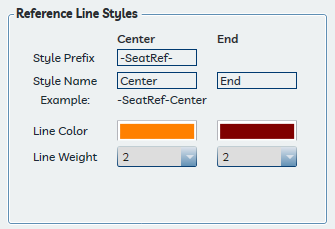
The Reference Line Styles section controls the naming of the linestyles used for row reference lines. Style naming uses a Prefix and Style Name for each of the Center and End aligned styles. An example of the resulting description is shown in the dialog.
Line colors and lineweights can be set independently for each style.
Important
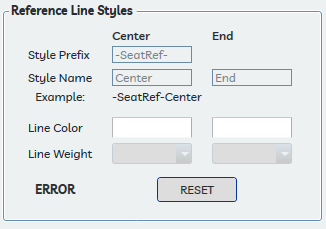
Linestyle names must be changed through the Performance Seating Settings dialog — not through the Revit Manage Linestyles dialog. The application uses the style name to identify row reference lines when placing seats. If lines are not being selected during seat placement, check this setting to verify the style name has not been renamed or deleted unintentionally. The dialog provides an option to reset these settings if needed.
Default naming conventions#
Set the default prefix and separator used for automatically generated names for Venues, Seat Sections, and Focus Points. An example of the resulting name is shown for each element type.
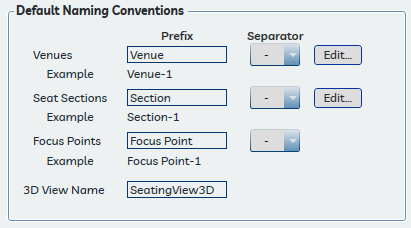
The Venue and Seat Section lists can be pre-populated here to make them available immediately on a new project, saving time when beginning seat placement.
A note about venue naming#
The Venue Prefix applies to the default name assigned when a new venue is created (for example, Venue-1). Because venues are created manually rather than automatically, the prefix only affects the suggested default name. It is most useful when standardizing naming conventions across multiple projects by saving it as a default.
3D view name#
Specifies the name of the 3D view the application uses internally to locate adjacent floors and other approved reference elements when setting seat elevations. To find the correct elevation, the application fires a vertical ray up and down from each seat's reference point within this view — the first intersecting surface it finds determines the seat's vertical offset from its host reference plane.
This view is created automatically when the project is initialized. If it is deleted, the application will recreate it automatically on the next seat placement.
Visibility in this view directly affects elevation results
The intersection check only finds elements that are visible in this view. Floors, Generic Model risers, or Specialty Equipment elements that are hidden — through workset visibility, view filters, graphics overrides, or any other means — will not be detected. When the application finds no reference element, the seat falls back to the elevation of the host reference plane with no vertical offset. This can cause seats to appear at unexpectedly high or low elevations, particularly in stepped or raked sections.
If seat elevations are incorrect and the Maximum Floor Distance appears reasonable, open this view and verify that all relevant floor and riser elements are visible. If the view's visibility settings are suspect or have been modified, deleting the view is the simplest fix — the application will regenerate it with clean default settings on the next placement. See Troubleshooting elevation results for more detail.