Seat & Row Identifiers#
This settings tab controls how seats and rows are labeled and numbered throughout the model. See Numbering for a full explanation of how each scheme works.
Seat numbering#
Select the desired seat numbering scheme to use for the project. Each scheme has settings that can be adjusted for the specific venue layout. Available schemes are described in detail in Seat Numbering.
Seat numbering settings#
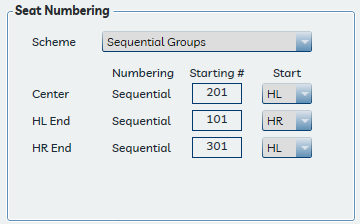
Depending on the selected scheme, the following options may be available:
- Numbering sequence for center-aligned rows, and for end-aligned rows on the
House Left and House Right sides of the venue.
- A center-aligned row always numbers sequentially.
- An end-aligned row may number as odd, even, or sequential depending on the scheme.
- Starting numbers for center and end-aligned rows. Except under the Manual scheme, starting numbers must be unique. Note that the application does not prevent duplicate seat numbers if starting values are set too similarly.
- Numbering direction — whether each group begins on the House Left or House Right end of the row.
Row orientation and the focus point
The focus point assigned to a set of rows determines their orientation. The application assumes seats face toward the focus point, and that the focus point is positioned relatively centered within the room relative to the rows it serves. See Room Orientation for more information.
Row identifiers#
Select a row identifier scheme to use for labeling and scheduling rows and seats in the model. See Row Identifiers for a full description of available schemes.
Row identifier settings#
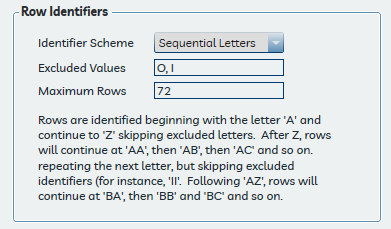
- Scheme — One of three schemes may be selected. While a scheme can be changed mid-project, existing seats and rows will not be automatically updated — affected rows will need to be re-placed.
- Excluded values — For letter-based schemes, enter letters to exclude from row identifiers, separated by commas. The default exclusions are O and I.
- Maximum rows — Sets the maximum number of rows available in the user interface. The default is 72.
Previewing a scheme#
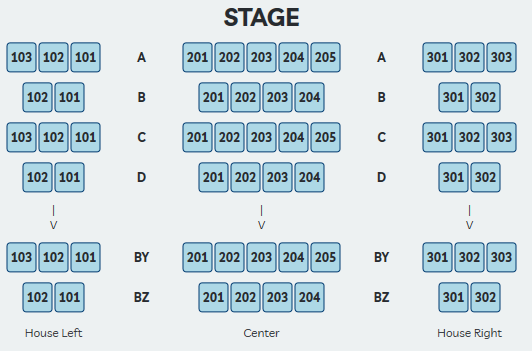
Click the Expand → button at the bottom of the Settings window to see a graphical preview of how the current scheme settings will number seats and rows. Settings can be adjusted and the preview updates in real time.