Performance AV#
Performance AV synchronizes Revit with acoustic simulation software.
Interior surfaces of Revit model venues are exported to AutoCAD DWG format for import into acoustic simulation software such as AFMG EASE. The application also imports loudspeaker location data from the XLD file format, synchronizing native Revit loudspeaker families in location and orientation.
What it does#
-
Capture a venue
Identify a room in the model and the application finds the surfaces that enclose it, then exports them as modeled.
-
Export to DWG
Surfaces on layers by category or type, for material assignment, in the venue's own coordinate frame, ready to import into EASE or another simulation package.
-
Place loudspeakers
Configure a speaker family once, or load the generic families, then bring positions and aiming in from an
.xldfile. -
Set it up for your model
Export folders, which categories bound the room, and which element types get their own acoustic material.
Start here#
Work through these in order.
- System requirements — Revit 2023 to 2027.
- Installation — run the MSI, start Revit.
- Capturing a venue — the workflow, step by step.
Scope
Performance AV produces a DWG of the venue's surfaces and exchanges loudspeaker
data with an .xld file. It does not perform acoustic analysis. Importing the
DWG, assigning acoustic materials and interpreting the results are governed by
the simulation software, and its documentation is the authority on them.
This is a beta release
Capture is still being developed against real buildings. Report what you find, and consider enabling diagnostic reporting.
How the pieces fit#
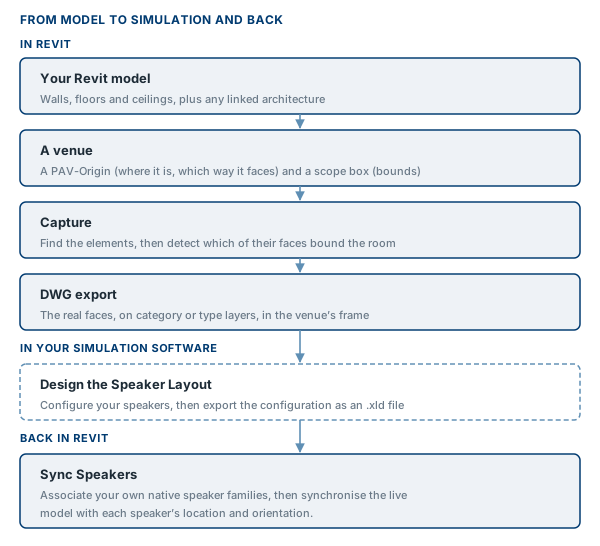
A venue is one room in the model, defined by two elements: a scope box that bounds it, and an origin that sets the origin and axes of its export. Settings, layers, exports and speaker files are all held per venue.
The DWG is written in the venue's frame, and loudspeaker positions from an .xld file
are read in that same frame.