4. Bringing Loudspeakers In#
With the DWG imported, the loudspeaker design is carried out in the simulation software
and exported as an .xld file. This page brings that design back into Revit.
Load the generic loudspeakers#
Performance AV includes two generic loudspeaker families, already configured for synchronisation:
- PB_Speaker_PS — a point source.
- PB_Speaker_Ceiling — a face-based ceiling loudspeaker, mounted on the nearest ceiling or other host surface and aimed by it.
Click Load Speakers in the Speaker System panel to load both into the project. A family already in the project is not reloaded. The generic families are enough to complete this walkthrough; skip to Run the sync.
Configure a loudspeaker family#
To use a manufacturer's or office family instead, prepare it with Configure Speaker. A family is prepared once, and any model using it can then be synchronised. Skip this section if the family has already been configured.
- Open the loudspeaker family in the Family Editor.
- Click Configure Speaker in the Speaker System panel.
- Select the loudspeaker type, then the direction the grille faces in plan.
- For each axis — horizontal, vertical and rotation — select the family parameter that aims the loudspeaker and the direction positive values turn. Direction can be confirmed by setting the parameter to a positive value and observing the result.
- Review the answers and click Configure, then save the family and load it into the project.
A face-based family asks for the loudspeaker type only; it is aimed by the surface it is mounted on.
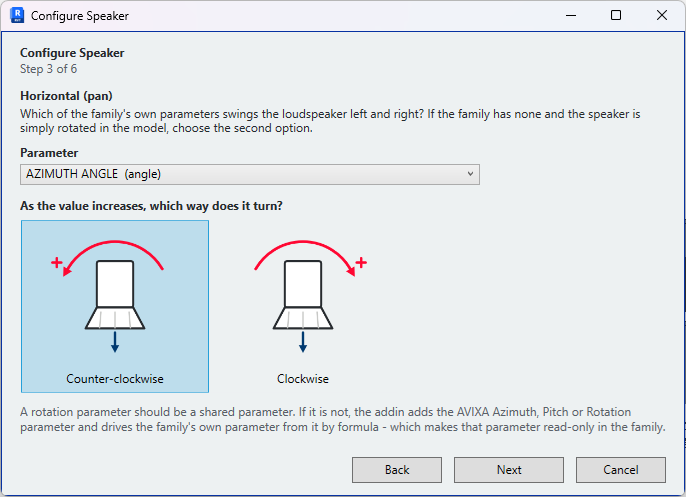
See Configure Speaker and Compatible families.
Run the sync#
- Click Sync Speakers in the Speaker System panel.
- Select the venue.
- Select the
.xldfile exported from the simulation software. It is stored on the venue for later syncs. - In the matching dialog, confirm each loudspeaker's target — <New> for a loudspeaker not yet in the model — and its family type.
- Click Sync.
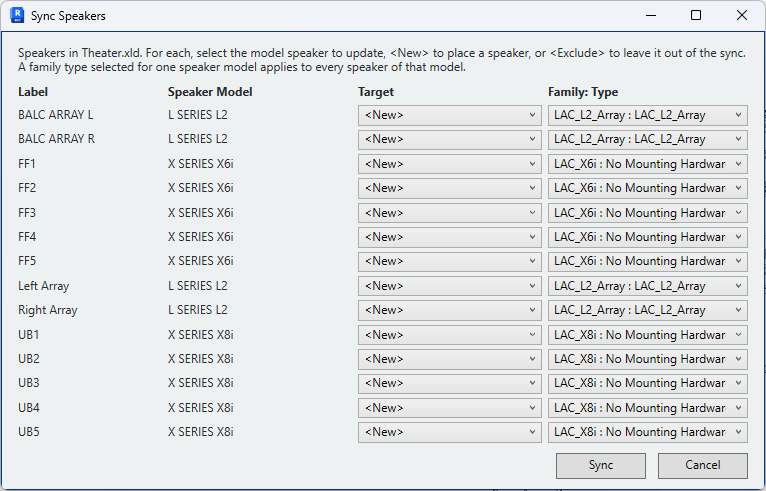
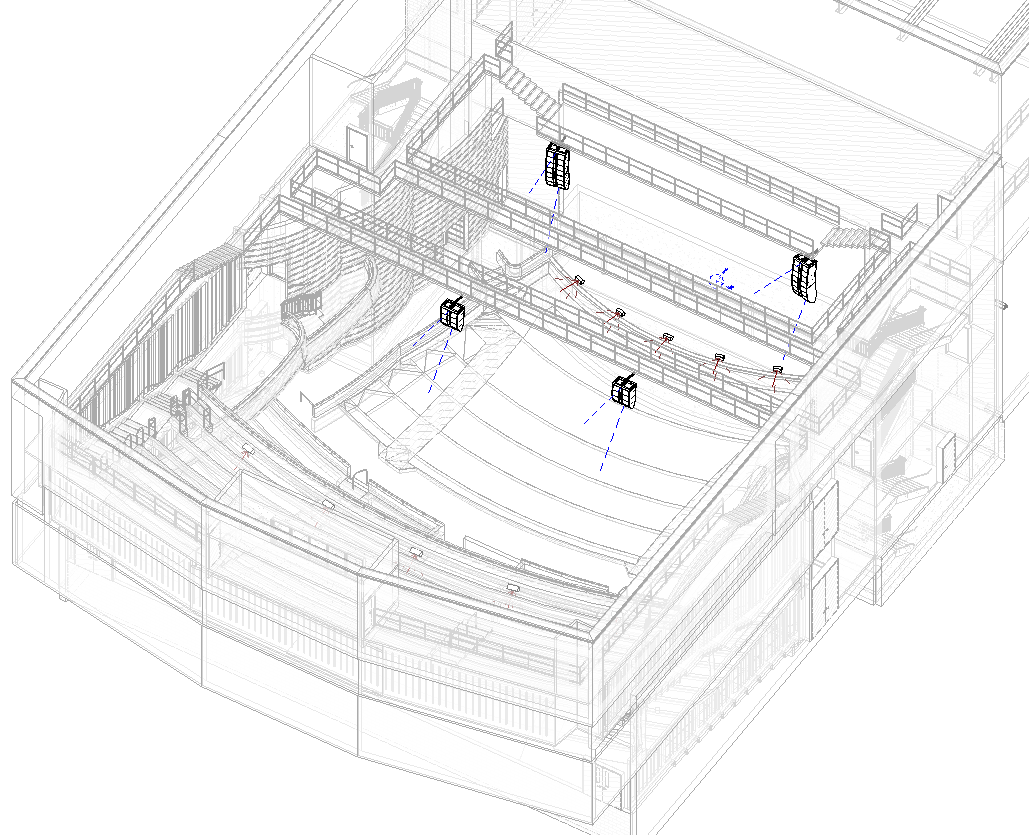
Loudspeakers are placed at the positions and aiming held in the file, relative to the venue origin.
Review the result#
Positions. Loudspeaker positions in the .xld file are relative to the venue origin,
in the same frame as the DWG export. Where the simulation model originated from the
export made on the previous page, they require no reconciliation. A model built
independently from a different origin will show an offset.
Aiming. Where a loudspeaker is aimed incorrectly, the cause is usually a reversed direction in the family's aim configuration. Re-run Configure Speaker on the family, reverse the affected axis, and sync again.
Loudspeakers not in the file. On a later sync, loudspeakers in the venue that are no
longer in the .xld file are offered for deletion. Those not deleted are left unchanged
and listed in the summary.
Matching is by label
Loudspeakers are matched between the model and the file on their label. Differences in position and aim are not used to detect a mismatch, and the file takes precedence. Use Remap Speakers to review every row where loudspeakers have been moved in Revit.
Next#
- Capture the next venue.
- Report any problems, and consider enabling diagnostic reporting.