Sync Speakers#
Pairs a venue with an EASE .xld file and brings its loudspeakers into Revit.
Before running a sync#
- The venue exists and can be captured: a named origin inside a scope box. Positions in
the
.xldfile are relative to the origin. - At least one configured loudspeaker family is loaded. The generic families installed with Performance AV are loaded with Load Speakers.
Using the tool#
- Click Sync Speakers in the Speaker System panel.
- Select the venue, where the model contains more than one.
- On the first sync of a venue, select the
.xldfile. The file is stored on the venue and used by later syncs; change it in Settings → Project Info. Where the stored file no longer exists, the file is asked for again. - Where the matching dialog opens, set each row's Target: a model speaker to update, <New>, <Change family type> or <Exclude>, and its Family: Type. A new loudspeaker's family type defaults to the type already used for its speaker model in the venue, or the type whose name best matches the model name. A family type selected for one speaker model applies to every speaker of that model.
- Where loudspeakers in the venue are no longer in the file, tick those to delete. Unticked loudspeakers are left unchanged.
- The sync runs, and a summary is shown.
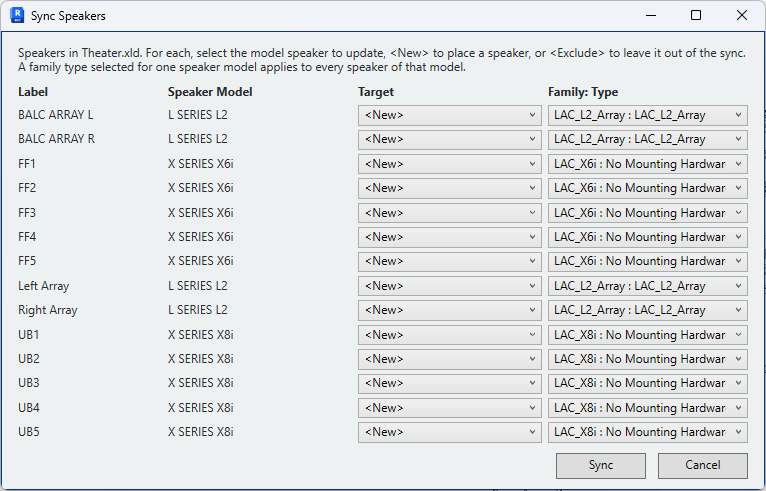
Remap Speakers#
The matching dialog opens only when a decision is needed: a loudspeaker in the file is not yet placed, a row has no target, a label is used more than once, the file gives a different speaker model for a placed loudspeaker, or a labelled loudspeaker lies outside every venue. When every loudspeaker in the file matches a placed loudspeaker, the dialog is skipped.
Remap Speakers, in the Sync Speakers drop-down, runs the same sync with the dialog always shown, so the target loudspeaker and family type of any row can be changed.
Matching#
Loudspeakers are matched on the label — PAV_XLD_LABEL on the Revit instance against the
entry name in the .xld file.
- In the file, not in the model — placed.
- In both — updated to the file's position and aim.
- In the model, not in the file — offered for deletion. Those not deleted are left unchanged and listed in the summary.
Where the file gives a different speaker model for a placed loudspeaker than the one last synchronised, the row shows the previous model and the dialog opens so that the family type can be changed.
Matching is by label only
Differences in position and aim are not used to detect a mismatch. A loudspeaker moved in EASE and one moved in Revit are indistinguishable, and the file takes precedence. Use Remap Speakers to review every row where loudspeakers have been moved in Revit.
Values written#
For each matched loudspeaker: position, horizontal aim, vertical aim and rotation, through the aim map recorded when the family was configured.
Positions in the .xld file are in metres, the format's standard unit. Gain, delay and other electro-acoustic
values in the file are not read.
Face-based loudspeakers#
A face-based family is mounted on the nearest surface of a host category — by default
walls, floors, ceilings and generic models — to its position in the .xld file, in the
model or a loaded link, and fires straight out of that surface. The position in the file
is taken as the mounting point. Capture geometry, PAV-Origins and other loudspeakers never
host a loudspeaker.
| Search distance | 12 in (300 mm in a metric project) from the file's position |
| Surface choice | The nearest surface the loudspeaker fires away from |
| Aim tolerance | 10° between the surface and the file's aim before it is reported |
Distances, tolerance and host categories are set in Settings → Speakers. Aim parameters are not supported on face-based families.
A face-based loudspeaker is never rotated. When it is moved to a different surface on a later sync, it is replaced and its element ID changes.
After a sync#
A summary lists the changes made (CHANGES), each loudspeaker requiring attention (WARNINGS) and loudspeakers left out (NOTES). More Info explains each warning shown.
| Warning | Cause | Action |
|---|---|---|
| Missing: replacement type not placed | Removed for a family type change; the new type could not be placed. | Sync again. The loudspeaker is offered for placement. |
| Not placed: no host surface | Face-based family; no surface of a host category within the search distance. New loudspeakers are not placed; existing ones are not moved. | Verify the surface in the model or a loaded link, and the position in the simulation. |
| Not synced | No family type selected, target loudspeaker not found, or venue origin not found. | Correct the cause and sync again. |
| Position adjusted to host surface | Face-based family more than 1 in (25 mm) from its surface in the simulation; moved onto the surface. | Correct the position in the simulation if required. |
| Aim differs from simulation | No aim parameter for an angle used, or a face-based loudspeaker's surface orients it more than 10° from the simulation aim. | Run Configure Speaker, or align the aim in the simulation with the surface. |
| Family type not changed | Revit rejected the new type, or a face-based type has no surface in range. | The previous type is retained. |
| Not deleted | Pinned, or a group member. | Unpin or ungroup, then delete. |
| Outside all venue scope boxes | Labelled, but outside every scope box, so not matched to the file. | Move into the venue, or enlarge the scope box. |
Position warnings are reported only for loudspeakers placed or moved by the sync.
Coordinates#
.xld positions are relative to the venue origin, in the venue's frame — the same frame
used by the DWG export. Where the simulation model
originated from a Performance AV export, positions require no reconciliation. A simulation
model built independently from a different origin will show an offset.