Privacy#
Diagnostic reporting, detailed logging and problem reports. Available whether or not the application is licensed.
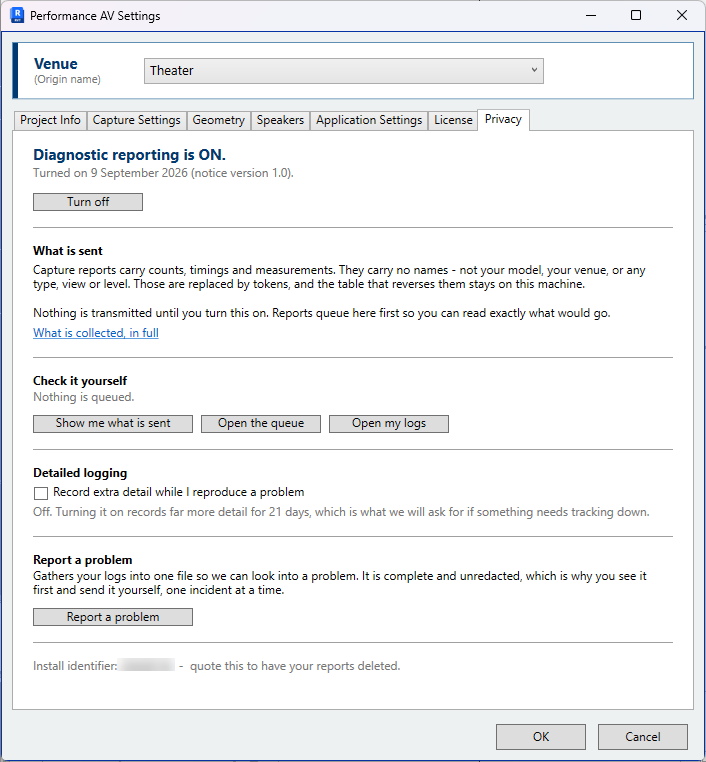
This page describes the controls. Data and Privacy describes what is collected and why.
Controls apply immediately
Every control on this tab takes effect when it is used, rather than when OK is clicked.
Diagnostic reporting#
The tab reports whether diagnostic reporting is ON or OFF, when it was last answered, and the version of the privacy notice it was answered against. One button changes the setting.
Reporting is disabled until it is enabled. When enabled, each capture writes a report of how the run performed, and queued reports are sent at the next Revit start. Reports contain counts, timings and measurements, and no names from the model.
Disabling reporting stops future reports and deletes any reports already queued.
Inspecting the data#
View latest report — Opens the newest queued report file, exactly as it would be sent.
Open queue folder — Opens the folder queued reports are held in.
Open logs folder — Opens the capture logs and the key file that resolves codes to names.
Delete queued reports — Deletes any reports awaiting transmission. Shown only when reports are queued.
A line above the buttons reports the number of queued reports and the space they occupy.
Detailed logging#
Record detailed diagnostic logging — Records additional diagnostic detail. Disabled by default. Enable it when requested by support, reproduce the problem, then use Report a problem.
Detailed logging disables itself after 21 days; the date is shown beneath the checkbox. This is the only logging control in the application — the ordinary application log is always written. See Data and Privacy.
Report a problem#
Report a problem — Collects the logs into a single file and transmits it, covering one incident. Unlike the automatic reports, a problem report is complete and unredacted. Every file and its size is listed before the report is sent, and the folder can be opened and the files read.
The report returns a reference such as PAV-33UU-KJ9G, to be quoted in correspondence.
Where transmission fails, the file remains in the folder and is opened so that it can be sent by email.
Install identifier#
Shown at the bottom of the tab. It associates a report with the installation, and is the reference quoted to request deletion of the data. Nothing else identifies the sender in a diagnostic report.
The identifier is issued on licence activation. Neither reporting channel can transmit before then.