2. Place the Scope Box#
Place Scope Box names the venue, then starts Revit's scope box tool.
Using the tool#
- Open a plan view in which scope boxes are visible. The command runs only in a plan view, and reports when scope boxes are hidden in the view or its view template.
- Click Place Scope Box in the Geometry panel.
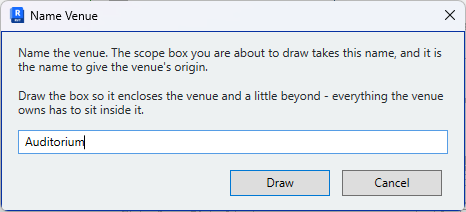
- Enter a name for the venue and click Draw.
- Revit's scope box tool starts. Draw the box in plan around the room.
- Switch to a section or elevation and set the top and bottom.
The box drawn is given the venue name.
Sizing the box#
Size the box to the acoustic space plus a small margin. A box drawn too tightly clips surfaces; a box drawn much larger than the room increases capture time.
Extend the box above the acoustic volume
Take the top of the box above the acoustic volume of a venue, not to a suspended ceiling. Where the box stops at or below the ceiling, the ceiling is not captured and the room is left open at the top.
Changing the box#
A scope box is an ordinary Revit element. Resize it in any view and capture again.
The venue is tied to the box by position, not by name: the box belongs to the venue whose origin it contains. Renaming the box does not affect the venue.