2. Your First Capture#
Enable the review view#
Before capturing, open Settings → Application Settings → Diagnostics and enable Keep export view. The capture then leaves a 3D view of the result in the model, which is what the rest of this page works from.
Run the capture#
Click Capture Venue in the Geometry panel and select the venue.
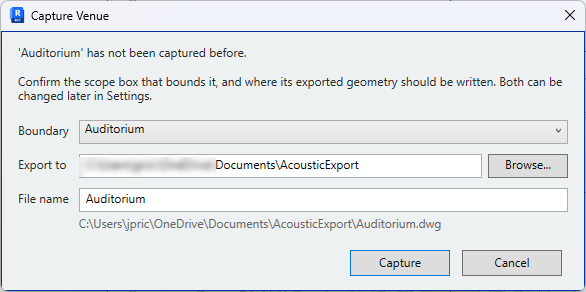
A venue being captured for the first time has not been told where its DWG goes or what should be captured, so the application asks. Nothing is saved until every screen has been answered; cancelling at any point leaves the model unchanged.
Boundary and export#
Confirm the scope box that bounds the venue, the export folder and the file name. The
folder offered is the Default CAD export folder set in
Application Settings, or, where none is
set, an AcousticExport folder beside the Revit model. The file name is offered as the
venue's own name, so that two venues in one model do not overwrite each other.
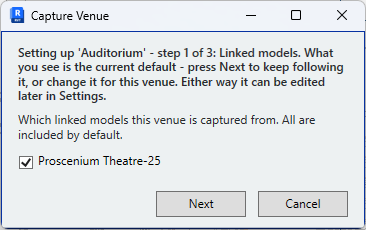
Linked models#
Which linked models this venue is captured from. All are included by default. This screen is skipped where the model has no links.
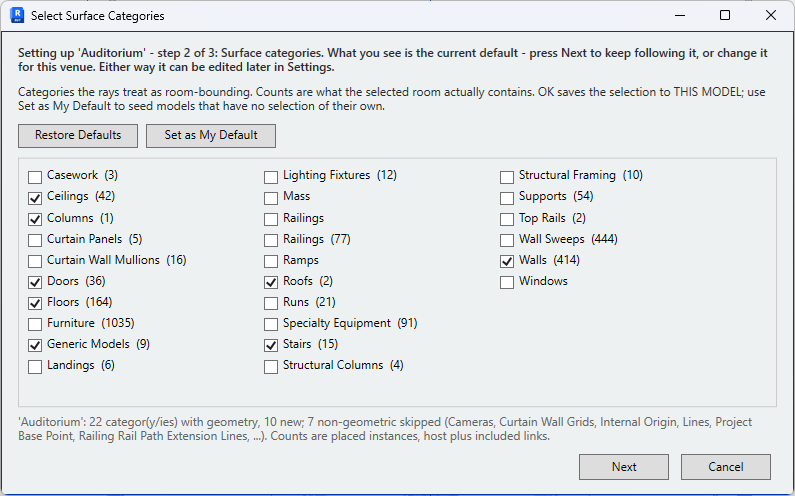
Surface categories#
The categories the capture collects surfaces from, with a count of the elements of each found in the venue's scope box. The defaults suit most rooms.
Type layers#
The element types found within those categories, and the layer each exports to. These are assigned on the next page; press Next for now.
After the last screen, the capture runs.
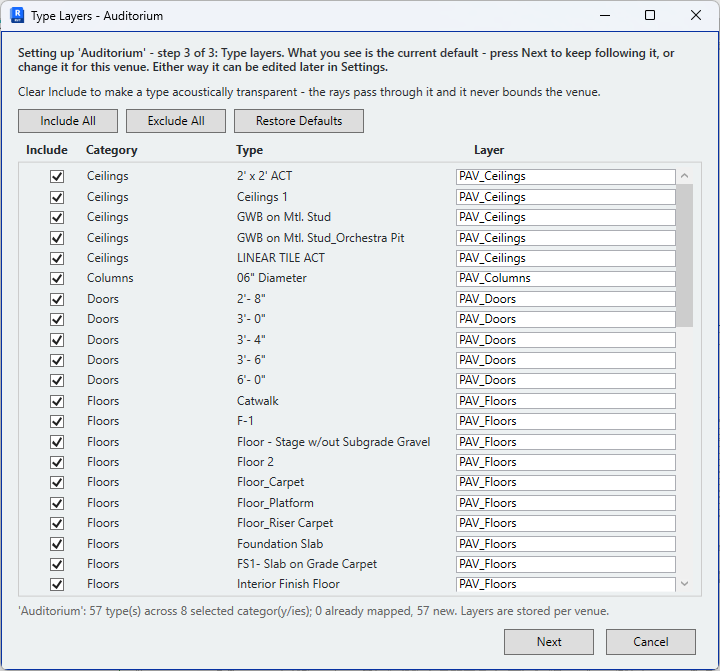
Pressing Next without changing anything
A screen left as found keeps the venue following the defaults, so a later change to those defaults reaches this venue. Changing something stores that answer on the venue. Everything asked here can be edited afterwards in Settings.
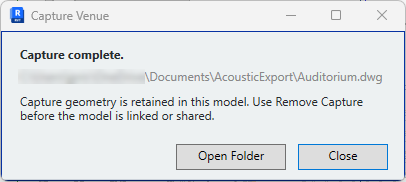
A general purpose auditorium takes roughly ten to fifteen seconds, and a dialog reports where the DWG was written.
Review the result#
The model now contains a 3D view showing only the captured surfaces. Open it and review the result from several angles.
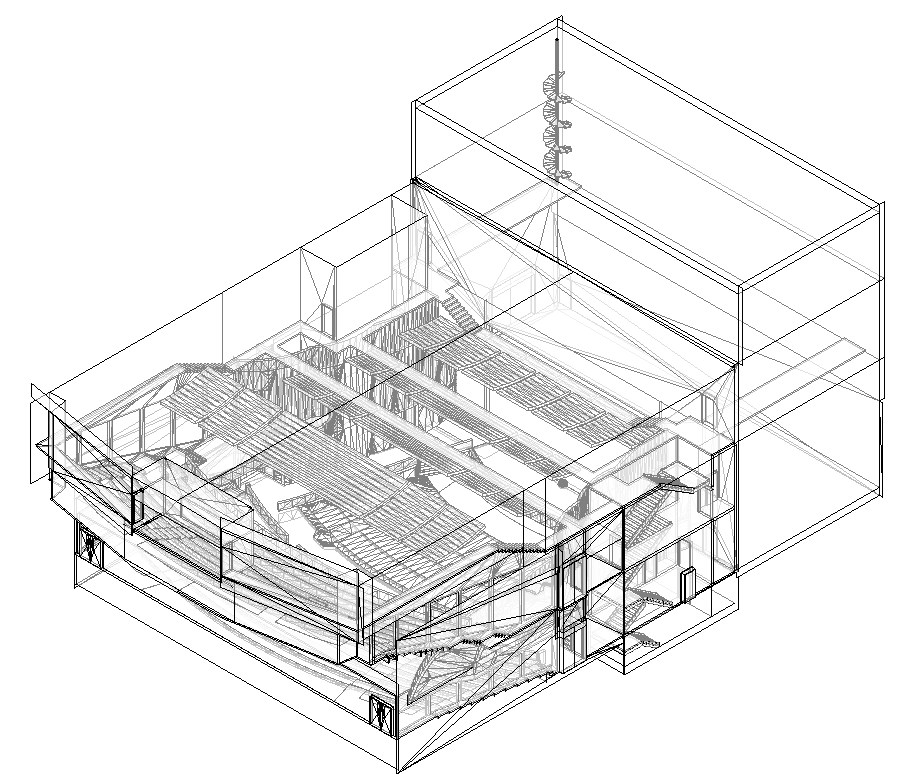
Is it the correct room?#
A shape that is far too small, or that is clearly a corridor or back-of-house space, indicates the origin was in the wrong room. Move it and capture again.
Is the ceiling present?#
A room that is open at the top, with no ceiling surfaces, indicates the scope box stopped at or below the ceiling. Elements outside the box are not captured, and the capture creates no surfaces of its own. Take the box up beyond the acoustic volume and capture again.
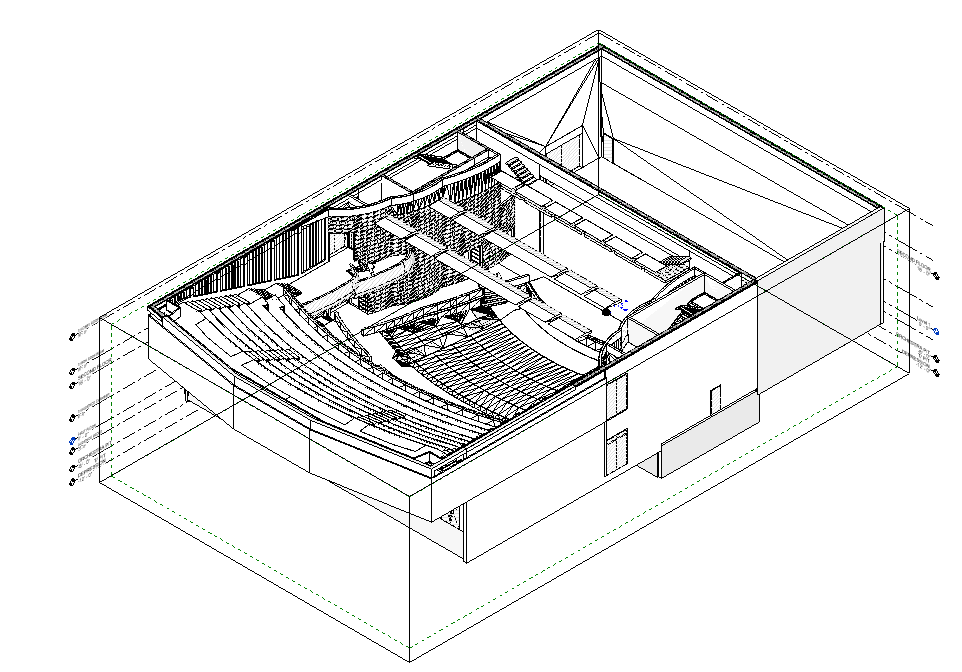
This is the usual first-run finding. Without its ceiling the room is not enclosed, and its volume cannot be calculated in the simulation.
Are there holes?#
Missing patches are locations where no surface was found. Inspect that part of the model: the surface is usually not modelled, its link is not loaded, or its category is switched off in Capture Settings. A genuine opening is also possible.
Is anything present that should not be?#
Furniture, a neighbouring building inside the scope box, or an acoustically transparent screen. These are excluded on the next page.
Correct and repeat#
Resize the box, correct the wall or load the link, then capture again. Each capture replaces the venue's previous capture geometry and DWG.
Next: Layers and the export