3. Layers and the Export#
With the captured shape correct, the next step is assigning surfaces to layers.
Why layers matter#
Every captured surface is placed on a layer, and one acoustic material is assigned per
layer after import. By default surfaces are grouped by Revit category, so every wall in
the room — heavy masonry, stud partition, stage enclosure — arrives on PAV_Walls.
Assign types to layers#
- Open Settings → Capture Settings, and click Edit... beside Type layers. The dialog lists every element type of the selected categories in the venue.
- Give the acoustically distinct types their own layer names:
- heavy masonry separately from lightweight partitions;
- the stage enclosure separately from the side walls;
- seating separately from the floor beneath it;
- glazing separately from solid wall.
- Clear Include for anything acoustically transparent, and anything captured that is not part of the room.
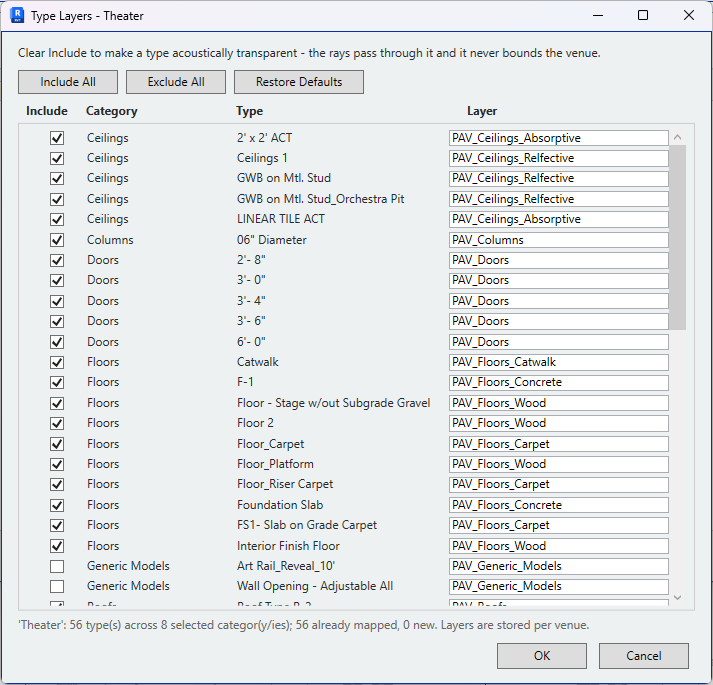
Unassigned types remain on their category layer.
Capture again#
Click Capture Venue. The DWG is overwritten with the new result.
Import the file#
The DWG is at the path set in Settings → Project Info. Import it following the documentation for the simulation software, and confirm on import:
- The units match the project's units.
- The layers are present as separate layers. Where all geometry arrives on layer 0, the layers were not read on import.
- The enclosed volume corresponds to the volume of the room. A significant difference indicates a missing surface — return to the review view in Revit and locate it.
Restore the diagnostic settings#
Disable Keep export view in Settings → Application Settings → Diagnostics. Each run otherwise adds a view and a set of surfaces to the model.
Next: Bringing loudspeakers in