1. Setting Up the Venue#
Open the model#
Open the project and load any linked models containing the room. An unloaded link is invisible to the application, and is the most common reason a first capture returns almost nothing. Check Manage → Manage Links to confirm.
Place the scope box#
- Open a plan view of the room, and click Place Scope Box in the Geometry panel.
- Enter a name for the venue.
- Draw the box in plan around the room, leaving a small margin.
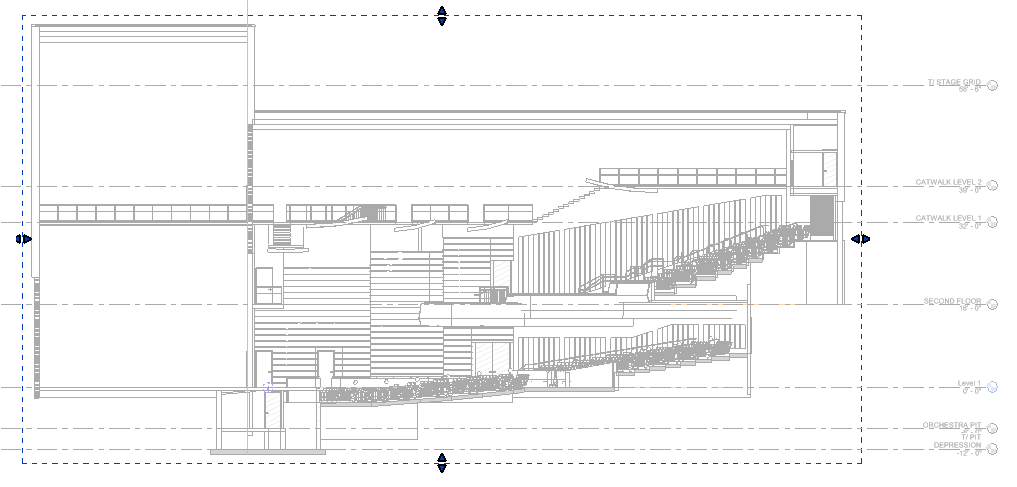
- Switch to a section or elevation and set the top and bottom.
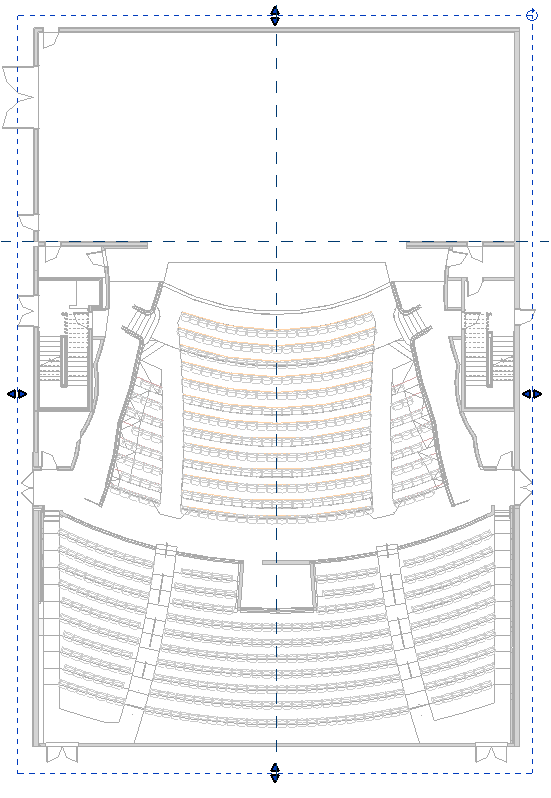
Extend the box above the ceiling
Take the top of the box to the underside of the structure above, not to a suspended ceiling. Where the box stops at or below the ceiling, the ceiling is not captured and the room is left open at the top. This is the most common first-capture problem.
Place the origin#
- Click Place Origin.
- Confirm the venue name. The scope box's name is offered.
- Place it on the room's centreline, at the depth datum loudspeaker positions are measured from — commonly the stage or proscenium line. Its elevation is the height loudspeakers are referenced to, and it must be inside the closed volume of the room.
- Rotate it to the convention used in the simulation software.
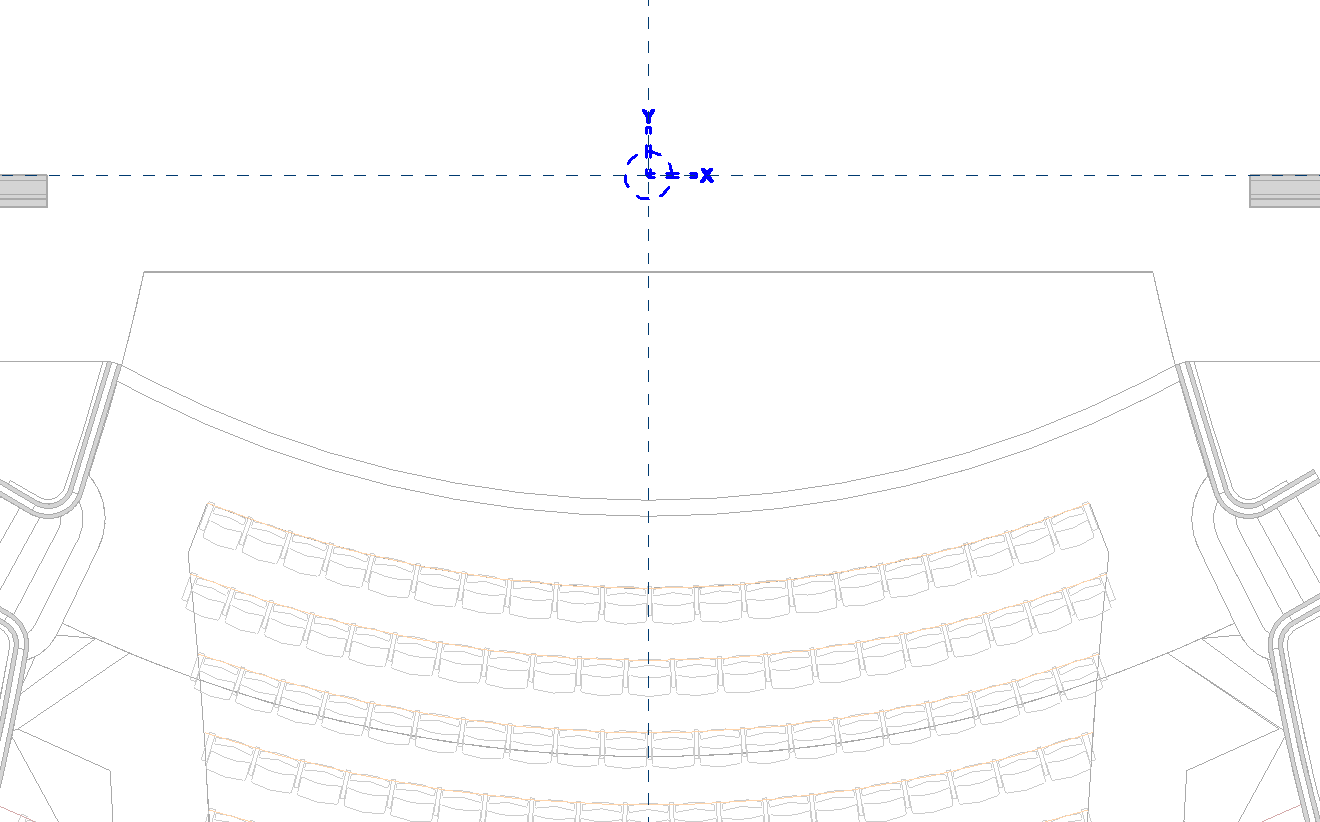
Its position and rotation become the origin and axes of the exported DWG. See Place the origin.
The venue is now defined. The remaining settings are asked on the first capture.
Next: Your first capture