5. Check the Result#
A capture that reports success has produced geometry. Confirm that it is the intended geometry before exporting it for simulation.
Inspect the result in Revit#
Before a first capture of a room, enable Keep export view in Settings → Application Settings → Diagnostics. The capture then leaves a 3D view containing only the captured surfaces.
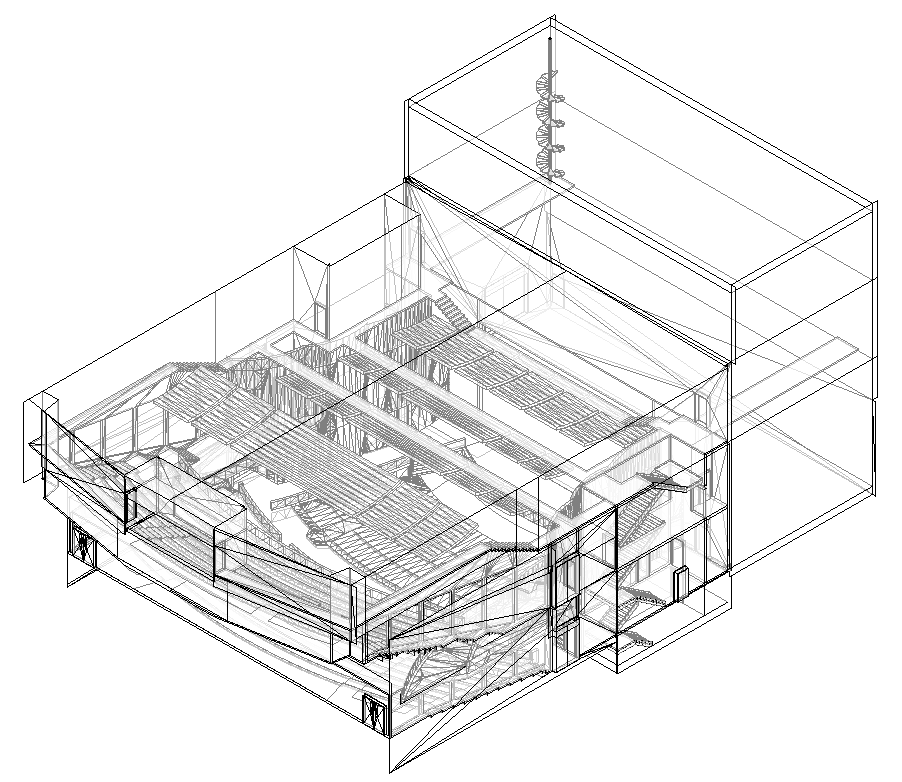
Is it the correct room?#
A shape that is far too small, or that is clearly a corridor or lobby, indicates the origin is in the wrong space. Move it into the room and capture again.
Is the ceiling present?#
A room that is open at the top, with no ceiling surfaces, indicates the scope box stops at or below the ceiling. Elements outside the scope box are not captured, and the capture creates no surfaces of its own, so nothing closes the room. Take the top of the scope box up beyond the acoustic volume and capture again. This is the most common finding on a first run.
Are there holes?#
Missing patches are locations where no surface was found, usually one of:
- an element that is not modelled;
- a link that was not loaded;
- a category switched off in Capture Settings;
- a genuine opening.
Inspect that part of the model to determine which.
Is anything present that should not be?#
Furniture, a neighbouring building inside the scope box, or an acoustically transparent screen. Exclude these in Capture Settings → Type Layers, or reduce the scope box.
Check the enclosed volume#
After importing the DWG, compare the enclosed volume reported by the simulation software against the volume of the room. A significant difference indicates a missing surface. See the DWG export.
If the cause cannot be identified#
Use Report a problem from inside Revit. The report includes the detailed record of the run and returns a reference number.