Application Settings#
Default names, view names and the diagnostic switches. Stored per Windows user and applied to every model.
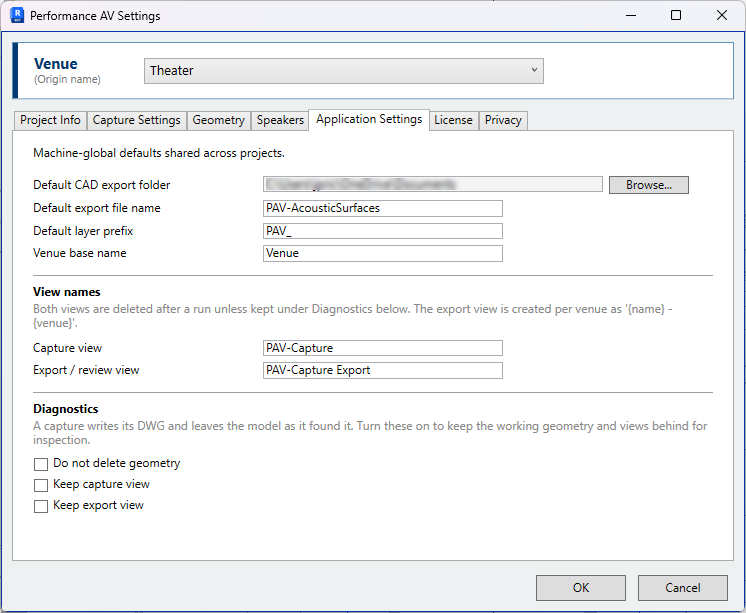
Defaults#
Default CAD export folder — The export folder for a venue with no folder of its own,
and the folder offered on a venue's first capture. Set with Browse; the field cannot
be typed into. Clear empties it. When it is blank, or the folder no longer exists,
exports go to an AcousticExport folder beside the Revit model. See
Project Info.
Each export is named after its venue by default, so venues with the same name in different projects write the same file name to this folder. Give such venues distinct file names on Project Info.
Default export file name — The DWG file name used for a venue whose file name is
blank. Default PAV-AcousticSurfaces. The first capture of a venue offers the venue name
instead.
Default layer prefix — The prefix of every generated layer name, PAV_ by default.
Changing it renames the category layers and the type layers of any venue whose type
layers have not been edited: PAV_Walls becomes ACO_Walls. Set it to match the office
DWG layer standard before assigning type layers, as edited type layers keep the names
they were saved with. See Surface layers.
Venue base name — The base of the name suggested for a new venue, default Venue. A
copied origin is renamed from the venue it was copied from, not from this value.
View names#
Capture view — Base name of the 3D view the capture works in: fenced to the scope
box, restricted to the selected categories and set to the chosen phase. Default
PAV-Capture.
Export / review view — Base name of the view the DWG is exported from, and the view
retained for review. Default PAV-Capture Export.
Both views are created per venue and named {name} - {venue}. Both are deleted after a
capture unless retained under Diagnostics. A capture view the venue captures through
by choice (Capture through a custom view) is never deleted.
Diagnostics#
A capture writes its DWG and removes the geometry and views it created. These switches retain them for review in Revit. All three are disabled by default.
Keep export view — Retains a 3D view showing only the captured surfaces. Enabling it also enables Do not delete geometry, as the view is isolated onto those shapes.
Do not delete geometry — Retains the captured per-layer surface shapes as elements in the model, without the view. Remove Capture deletes them. See Removing retained geometry.
Keep capture view — Retains the fenced 3D view the capture worked in.
Use Keep export view for a first capture of a room and disable it once the result is correct. Each run otherwise adds a view and a set of surfaces to the model. See Check the result.