6. Surface Layers#
Captured surfaces are sorted onto layers, so that one acoustic material can be assigned per layer after import.
Category layers#
By default each captured surface is placed on a layer named after its Revit category, with the layer prefix in front and spaces replaced by underscores:
| Category | Layer |
|---|---|
| Walls | PAV_Walls |
| Floors | PAV_Floors |
| Ceilings | PAV_Ceilings |
| Doors | PAV_Doors |
| Stairs | PAV_Stairs |
| Columns | PAV_Columns |
| Curtain Panels | PAV_Curtain_Panels |
A surface that cannot be attributed to an element is placed on PAV_AV-Unassigned.
Every layer derives from the model; the application does not add surfaces of its own.
Type layers#
A category layer carries a single material, and a category commonly contains types that differ acoustically — a hall's side walls and its stage enclosure are both Walls.
Settings → Capture Settings → Type layers → Edit... lists every element type of the selected categories found in the venue, with the layer it exports to. Each row's Layer starts as the category layer; type a different name to give that type its own layer. Types given the same name share a layer.
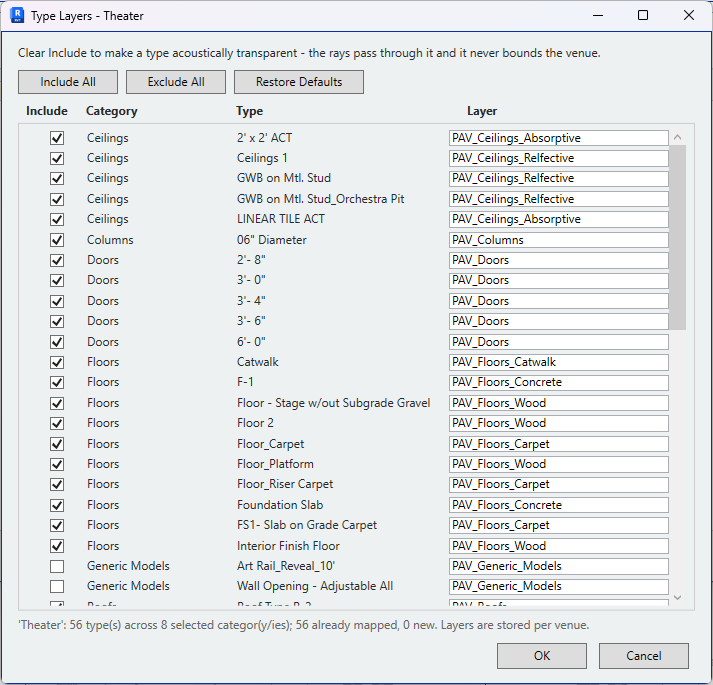
Types commonly separated:
- heavy masonry from lightweight stud partitions;
- the stage enclosure from the side walls;
- seating from the floor beneath it;
- glazing from solid wall.
Types left on their category layer export with the rest of that category.
Excluding types#
Clear Include on a row to make that type acoustically transparent: the capture passes through it, and it neither bounds the venue nor appears in the export. Use it for a glazed guard rail, an acoustically transparent screen, or furniture inside the scope box.
Include All and Exclude All set every row. Restore Defaults returns every row to its category layer and includes it.
Where the venue captures through a view formatted by the user, the Include column is hidden: the view decides what is captured, and a type is excluded by hiding it in the view. See Capture Settings.
Layer names#
The PAV_ prefix is set in
Settings → Application Settings, and may be
changed to match an office layer standard.
A venue whose type layers have never been edited follows the prefix: changing it renames every layer at the next capture. Once a venue's type layers are edited and saved, the layer names shown in the dialog are stored on the venue, and a later change to the prefix does not rename them. Set the prefix before assigning type layers.