4. Capture the Venue#
Capture Venue finds the surfaces that enclose the venue and writes them to a DWG.
Before running a capture#
Confirm the following:
- The venue has a named origin inside the room, and the origin is inside a scope box.
- Linked models are loaded.
Using the tool#
- Click Capture Venue in the Geometry panel.
- Where the model contains more than one venue, select the venue. A venue that cannot be captured is listed greyed, with the reason.
- On the first capture of a venue, answer the setup screens. See The first capture of a venue.
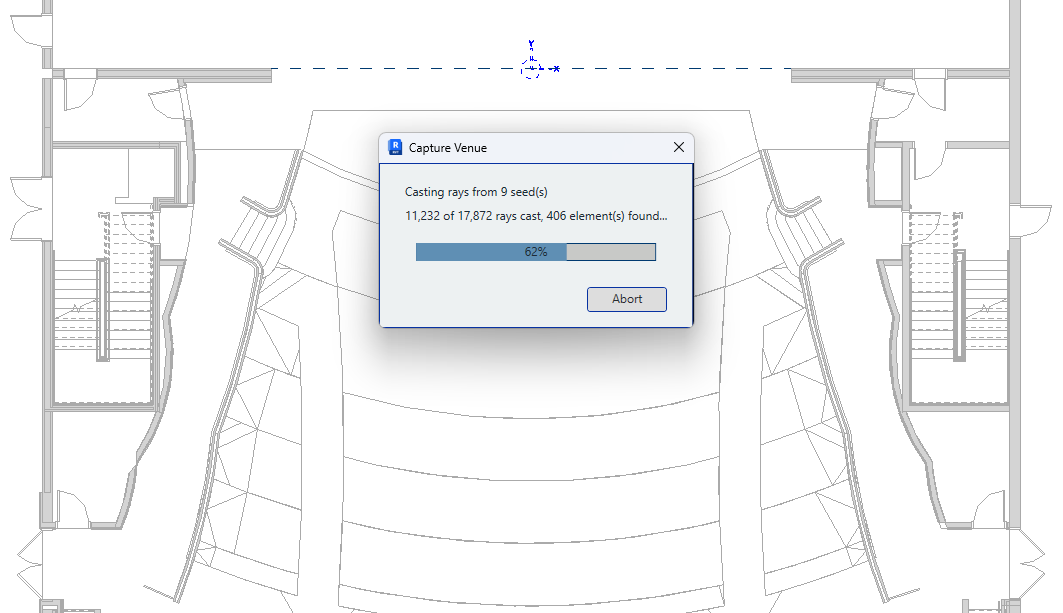
- The capture runs, with a progress dialog. A general purpose auditorium takes roughly ten to fifteen seconds; a large or complex model takes longer.
- A dialog reports where the DWG was written, with Open Folder to open it. Where capture geometry is retained in the model, the dialog says so.
Where no DWG could be written, a dialog gives the reason and nothing is exported.
After the first successful capture on a computer, the application asks once whether to share capture reports. See Data and Privacy.
The first capture of a venue#
A venue that has no export folder or file name set is set up before its first capture. Nothing is stored until every screen has been answered; Cancel at any point leaves the venue unchanged.
- Boundary and export. Confirm the scope box that bounds the venue, the export
folder and the file name. The folder offered is the Default CAD export folder set in
Application Settings, or, where none is
set, an
AcousticExportfolder beside the Revit model. The file name offered is the venue name. - Linked models. The linked models the venue is captured from. All are included by default. Skipped where the model has no links.
- Surface categories. The categories the capture collects surfaces from.
- Type layers. The element types in those categories and the layer each exports to. See Surface layers.
A screen left unchanged keeps the venue on the defaults, so a later change to the defaults reaches it. A screen that is changed stores its answer on the venue. Everything set here can be changed afterwards in Settings.
When the export folder cannot be written to#
The export folder is checked before the capture runs. Where it is on a drive that is not available on this computer, or cannot be written to, the application asks for a different folder and stores it on the venue.
Next: check the result.
Retaining the captured geometry#
By default the application removes the geometry and views it creates, leaving only the DWG. Three switches in Settings → Application Settings → Diagnostics retain them for review in Revit:
| Switch | Result |
|---|---|
| Keep export view | A 3D view showing only the captured surfaces, and the surfaces themselves. |
| Do not delete geometry | The captured surfaces as elements in the model, without the view. |
| Keep capture view | The 3D view the capture worked in. |
Both views are created per venue and named {view name} - {venue name}. The capture view
is always kept when the venue captures through a view formatted by the user; see
Capture Settings.
Use Keep export view for a first capture of a room, and switch it off once the result is correct. Each run otherwise adds a view and a set of surfaces to the model.
Removing retained geometry#
Retained surfaces remain in the model, and are carried into any model that links it. Remove them before the model is linked or shared.
Remove Capture, in the Geometry panel, deletes them for every venue in the model, after confirming the number of shapes to be deleted. It is available whenever the model contains capture geometry. Model elements, exported DWG files and retained views are not affected.
Running a capture again#
Capture may be re-run as required. Each run deletes the venue's retained capture geometry before it starts and overwrites the venue's DWG, so the model does not accumulate geometry between runs.