Capture Settings#
What the capture reads for the selected venue, and how captured surfaces are sorted onto layers. Stored per venue in the Revit model.
Linked models#
Select... — The loaded links the venue is captured from. All loaded links are included by default.
Exclude a link that duplicates geometry already present, or that contains a neighbouring building falling inside the scope box. A link must be loaded in Revit before the application can see it.
Categories#
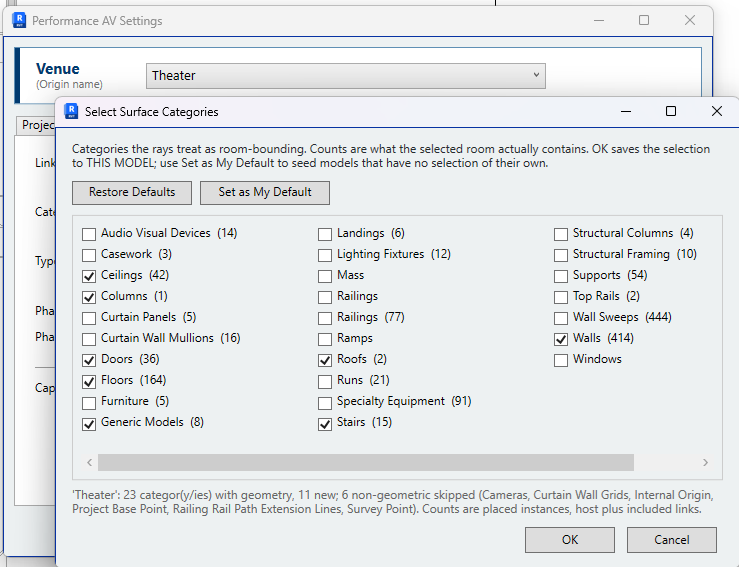
Select... — The Revit categories the capture collects surfaces from. This covers both the surfaces that enclose the venue and the surfaces within it — a reflector, a balcony front, a soffit, a stage riser — which do not bound the room but are part of the acoustic model.
The picker scans the venue's scope box when it opens, lists the categories present with a count of elements in each, and adds any that are missing from the list.
The defaults are Ceilings, Columns, Doors, Floors, Generic Models, Ramps, Roofs, Stairs, Walls and Windows.
- Restore Defaults — Selects the defaults.
- Set as My Default — Saves the selection as the default for venues that have no selection of their own. Stored per Windows user.
Add a category where the venue contains acoustically relevant surfaces outside this list, such as Casework, Curtain Panels, Structural Framing or Specialty Equipment. Adding categories increases capture time; removing a category leaves its surfaces out of the result.
At least one category must be selected.
Type layers#
Edit... — Lists every element type of the selected categories found in the venue, with the layer it exports to.
- Layer — The export layer for that type. Starts as the category layer; enter a name to give the type its own layer.
- Include — Clear it to make the type acoustically transparent: the capture passes through it and it is not exported.
See Surface layers.
Phase#
Phase — The phase the venue is captured in. Defaults to the model's last phase.
Phase filter — The phase filter applied to the capture view. Defaults to Show Complete.
Capture view#
The capture works in a 3D view of its own, one per venue, named
PAV-Capture - {venue name}. The base name is set in
Application Settings.
Capture through a custom view — The capture reads that view as formatted in Revit, instead of a view the application sets up from the settings above. The capture then returns exactly what the view shows, in the host model and in links, however elements are hidden: categories, worksets, filters, design options, phase, per-link overrides or Hide in View. The view is created from the current settings if it does not exist, and is not changed or deleted by the application afterwards.
While it is enabled, Linked models, Categories, Phase and Phase filter cannot be edited, and the Include column of Type layers is hidden. To exclude a type, hide it in the view. Two things apply in either mode: the scope box bounds the capture, and Type layers supplies the layer names.
Go To View... — Shown while Capture through a custom view is enabled. Saves the settings, closes the Settings window and opens the capture view, creating it first if it does not exist.